Schedule Posts to LinkedIn and Instagram from WordPress
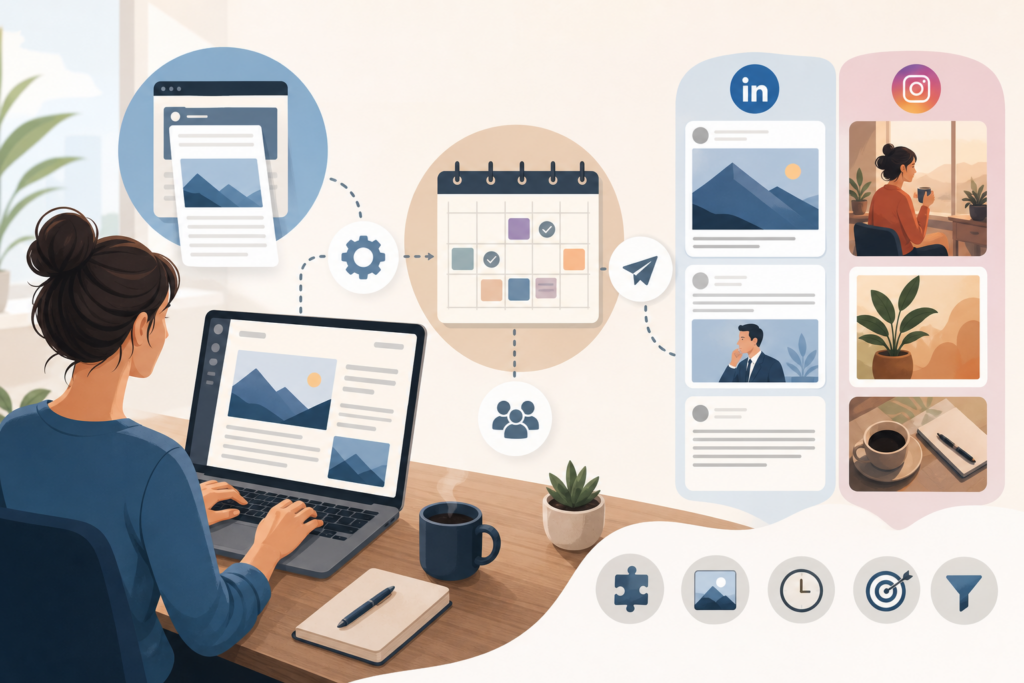
You published a solid blog post and then stopped there, because opening LinkedIn, rewriting the copy, designing an Instagram graphic and remembering to post at the right time takes hours you don’t have. This guide shows you how to schedule posts to LinkedIn and Instagram straight from the articles on your WordPress site: which tools to use, how to adapt each piece of content to both networks, and how often you can realistically post without burning out three weeks in.
Why everything should start from your website
Your blog is the only channel you truly own. A social post lives in the feed for a few hours, while a well-ranked article can bring in Google visitors for months. That’s the logic behind good WordPress SEO and smart content marketing for small business: treat your site as the source and social media as the amplifier.
In practice, you write once, in depth, and then pull several short pieces from that article to share over time. A post on “how to choose an accountant for your small business” can become a LinkedIn post with three tips, an Instagram carousel on the mistakes to avoid, and a Story linking to the full guide.
Your options to schedule posts to LinkedIn and Instagram from WordPress
There’s no one-size-fits-all answer. It depends on how much you want to automate and how much control you want over the copy of each post.
1. Auto-sharing with a plugin
Plugins like Jetpack Social (included in several WordPress.com plans and also available for self-hosted WordPress) let you connect your social profiles and share an article the moment it goes live. For Instagram you’ll usually need a professional account (Business or Creator) linked to a Facebook Page. It’s the fastest route, but the result tends to be generic: title, link and featured image. Always check the current documentation to see which networks and features are included in the free plan.
2. External schedulers
Tools like Buffer, Hootsuite, Later or Metricool let you build a queue of posts for multiple networks, with a visual calendar and previews. Many offer a browser extension: you’re on the article, you click, and the link lands in a draft. This is where you write different copy for LinkedIn and Instagram, which is exactly what you need.
3. RSS automations
Every WordPress site has an RSS feed (usually yoursite.com/feed). With services like Zapier or Make you can build a workflow: new article in the feed, then a draft in your scheduler or a post on LinkedIn. It’s handy if you rely on automated blog posting and publish often, but expect around half an hour of setup and some testing.
4. Free native tools
If your budget is zero, Meta Business Suite lets you schedule posts, carousels and Reels on Instagram, while LinkedIn lets you schedule posts right from its editor (the clock icon next to “Post”). More manual work, but full control.
| Option | Time required | Control over copy | Best for |
|---|---|---|---|
| Sharing plugin | Minimal | Low | People who just don’t want to forget |
| External scheduler | Medium | High | People managing several profiles |
| RSS automation | High at first, then low | Medium | People publishing lots of articles |
| Native tools | Medium to high | Maximum | People starting with no budget |
Tutorial: from blog post to social calendar in 6 steps
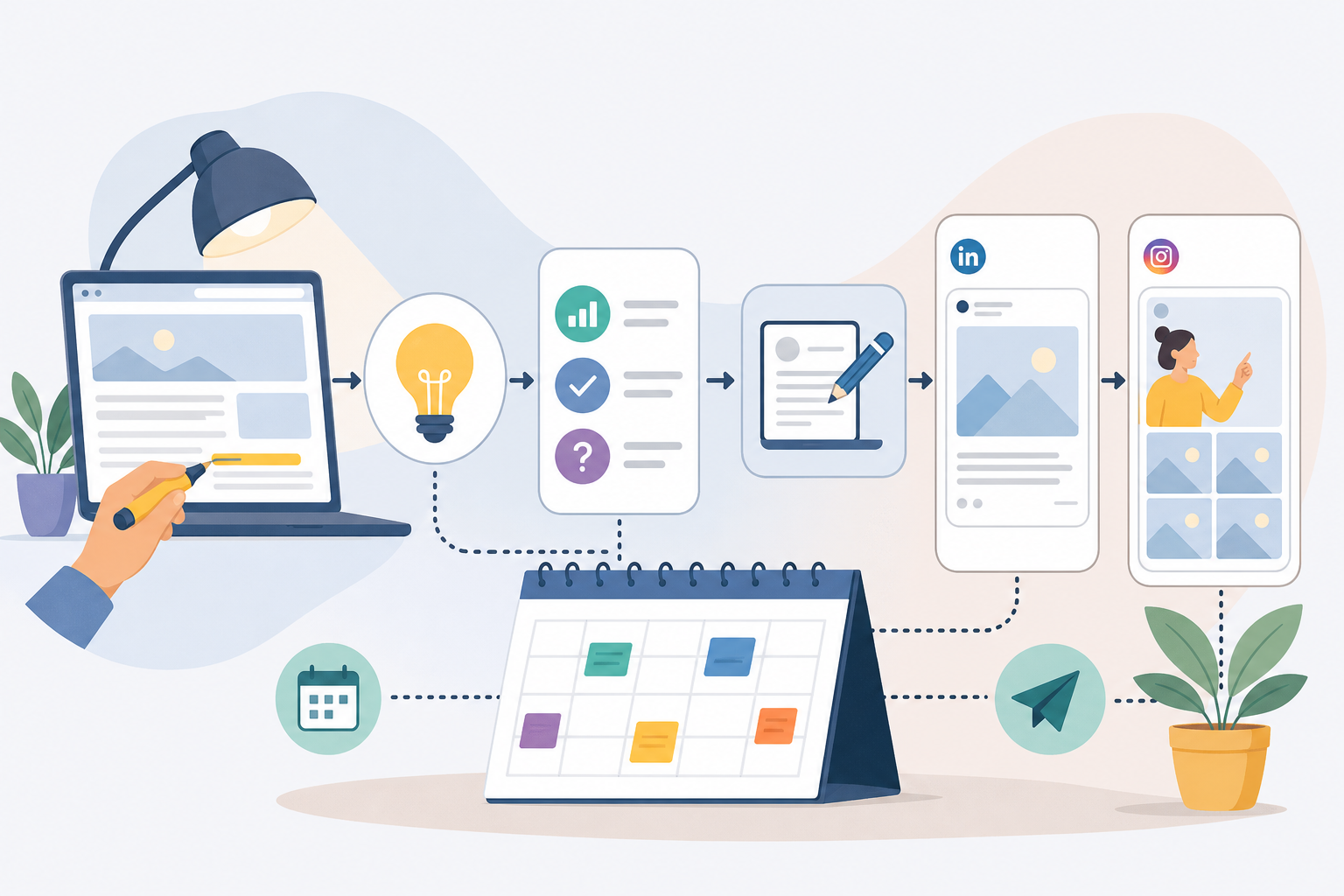
Here’s a workflow you can start using this week, with any of the tools above.
- Pick the article and its key message. Sum it up in one sentence: “Three mistakes that make freelancers overpay on taxes.” If you can’t, the article is too scattered for social.
- Pull out 3 angles. A statistic, a practical tip, a frequently asked question. Each one becomes a separate post.
- Write the LinkedIn post. Open with a line that sparks curiosity, develop it in 5 to 8 short lines, and close with an invitation to read the full guide.
- Create the Instagram content. Turn the angles into a 5 to 7 slide carousel or a short Reel. The link goes in your bio or in a Story with the link sticker.
- Spread it out. Don’t post everything on the same day: first post on publication day, second a week later, third a month later.
- Review results after 30 days. In Google Analytics, look at sessions coming from linkedin.com and instagram.com; add UTM parameters to your links to tell them apart more reliably.
Formats: what works on LinkedIn and what works on Instagram
The same copy pasted on both networks performs poorly on both. The differences are practical, not just a matter of style.
- Text post with an opinion or a real experience: “A client asked me why his website wasn’t showing up on Google. The reason was…”.
- PDF document people can swipe through: great for checklists and mini-guides drawn from the article, such as a WordPress SEO checklist.
- Link to the article: many professionals notice that posts with external links get less reach, so some put the link in the first comment. Test both versions and compare the numbers on your own profile.
- Carousel: the format closest to an article, one slide per point.
- Reel: 20 to 40 seconds explaining a single tip, talking to camera or using on-screen text.
- Stories: the only place besides your bio where you can add a clickable link. Use them to point people to your new article.
Remember that links in Instagram captions aren’t clickable: writing “link in bio” isn’t laziness, it’s the only option.
A sustainable posting pace for a small business
The right question isn’t “how much are others posting?” but “what can I keep up for six months?” Consistency beats volume, and it’s one of the most reliable small business blogging tips if you want to know how to increase organic traffic over time.
A realistic rhythm if you only have a few hours a week:
- Blog: 2 to 4 articles a month.
- LinkedIn: 2 posts a week, drawn from recent articles and older ones that are still relevant.
- Instagram: 2 to 3 pieces a week between carousels and Reels, plus a few Stories.
With 3 articles a month and 3 angles each, you already have 9 posts: nearly your whole LinkedIn calendar for the month. The trick is to block out a single 90-minute session once a week to write and schedule everything. A simple blog content calendar template in a spreadsheet is enough to keep track.
An article from six months ago is brand new to someone who followed you yesterday. Resharing useful content isn’t repeating yourself, it’s distributing it.
Mistakes to avoid
- Automating everything without proofreading: a post with a truncated title or a badly cropped image looks careless.
- Using the same image everywhere: Instagram favours vertical formats (4:5 or 9:16), while LinkedIn handles landscape images well too.
- Ignoring comments: scheduling a post doesn’t mean disappearing. Reply within the first few hours.
- Starting with too many channels: two well-run networks beat five abandoned ones.
The real bottleneck is upstream
Scheduling social posts gets easy once you have a steady stream of articles to draw from. If that’s the actual problem, finding the time to write and publish consistently, AutoPub can help: it works as an AI blog writer that generates SEO articles in English and Italian and lets you auto post to WordPress on the schedule you set, so every week you have fresh material to turn into social posts. You can try it on your own site with the AutoPub free trial and spend the time you save on the part you can’t delegate: talking to your customers on social media.
Frequently asked questions
Can I post to Instagram automatically from WordPress?
Yes, with plugins like Jetpack Social or external schedulers, but you need a professional Instagram account (Business or Creator) linked to a Facebook Page. With a personal profile, automation usually isn’t possible.
What’s the free way to schedule posts to LinkedIn and Instagram?
Use the native tools: Meta Business Suite to schedule posts, carousels and Reels on Instagram, and the scheduling feature in LinkedIn’s post editor. They take more manual work but cost nothing.
Should I put the article link in my LinkedIn post?
It depends on your audience. Many people see lower reach on posts with external links and prefer to add the link in the first comment. Test both versions for a few weeks and compare clicks and engagement.
How many times can I share the same article on social media?
Three or four times is fine, spaced weeks apart, with a different angle each time: a statistic, a tip, a question. Evergreen articles can return to your calendar every few months.
How do I know if social media is driving traffic to my blog?
Add UTM parameters to the links you share and check sessions from LinkedIn and Instagram in Google Analytics. Look at at least 30 days of data to get a reliable picture.