Auto Post to WordPress: 3 Ways to Automate Publishing

If you want to auto post to WordPress, you have three options. You can schedule posts with the built-in feature, use a plugin that imports content from RSS feeds or other sources, or connect an external platform, such as an AI blog writer, through the REST API and an application password. These options are not interchangeable. Each one changes how much work is left for you, the risk of mistakes and the WordPress SEO value of what ends up on your site.
This guide walks you through the practical steps for each option. It also covers the limitations worth knowing before you start.
Three ways to auto post to WordPress
Before the tutorials, here is a quick comparison to help you see where you fit.
| Option | Who writes the content | What gets automated | Best for |
|---|---|---|---|
| Native scheduling | You | Only the publish time | People who already write and want consistency |
| Automation or RSS feed plugins | External sources | Importing and publishing | Aggregators, internal news, multi-site networks |
| AI platform via REST API | AI, reviewed by you | Writing, optimization and delivery | Busy owners with a content plan |
The key difference is scope. The first option automates the when. The second automates the what, using other people’s content. The third automates the whole workflow, from draft to published post.
Option 1: WordPress native scheduling
Native scheduling is free, built in and needs no plugin. It is useful if you wrote three posts in one afternoon and want to spread them over three weeks.
- Open the post in the block editor and finish it. Add the title, body, category and featured image, plus the meta description in your SEO plugin.
- In the Post sidebar, click the publish setting, which is set to “Immediately” by default.
- Pick a future date and time from the calendar.
- The “Publish” button changes to “Schedule”. Click it and confirm.
- Check Posts > All Posts. The status should read “Scheduled”.
One detail trips up a lot of people. WordPress relies on WP-Cron, a system that only runs when someone visits your site. On a low-traffic site, a post can go live late or get stuck with a “Missed schedule” warning. If this happens often, ask your host to set up a real server cron job that triggers WP-Cron at fixed intervals.
Limitation: you still have to write the content yourself. Scheduling solves consistency, not a lack of time.
Option 2: Automation plugins and RSS feeds
Plugins such as WP RSS Aggregator or Feedzy read one or more RSS feeds. They turn the items into posts or into lists of links. Features and pricing change often, so always check the current version before you install anything.
- Install the plugin from Plugins > Add New Plugin and activate it.
- Add the source feed URL. For example, you could use your trade association’s blog feed, if you have permission.
- Choose the import format: title and link only, excerpt or full post. Full posts are often a paid feature.
- Set keyword filters so you only import relevant items.
- Choose how often the plugin checks the feed and the status for new items. “Draft” is a safer choice than “Published”.
- Assign a category and author. If the plugin supports it, set a canonical link to the original source.
Watch out for the SEO side. Republishing other people’s articles in full creates duplicate content and can raise copyright issues. Google doesn’t reward a site that repeats what already exists elsewhere. This option makes sense for specific uses:
- a retailer showing manufacturer news with an excerpt and a link
- a group of sites sharing internal announcements
- a “news roundup” page for customers
It is not a way to build organic traffic.
Option 3: AI platforms connected via REST API and application passwords
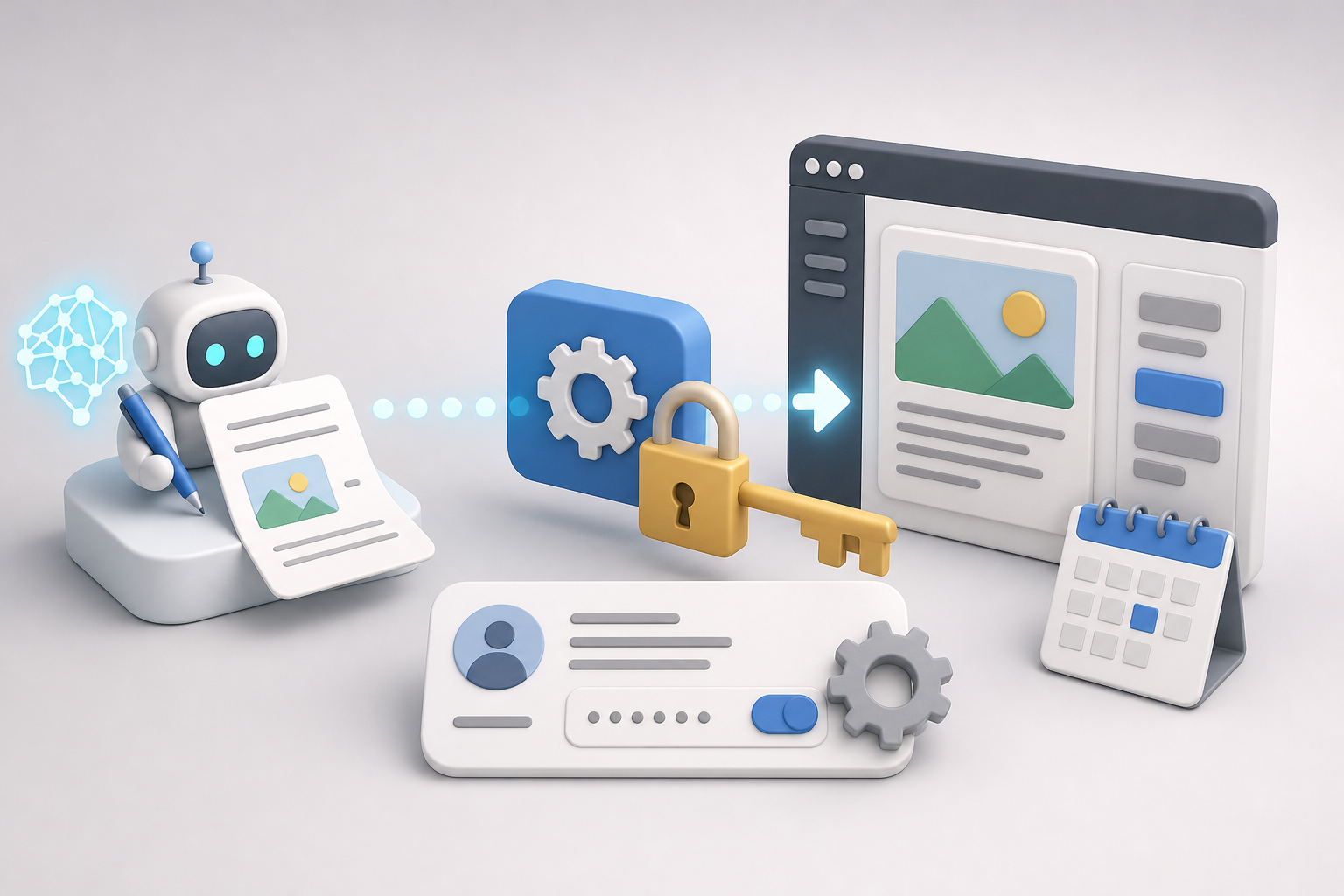
With this option, an external platform works as an AI content writer for WordPress. It generates a post from a keyword, structures it for SEO and sends it to your site as a draft or scheduled post.
The connection uses two things:
- the REST API, the interface WordPress provides at yoursite.com/wp-json/wp/v2/posts
- an application password, a credential that is separate from the one you use to log in to the dashboard
How to create an application password
- Make sure your site runs on HTTPS. This is usually required for the feature to work.
- Go to Users > Profile, or edit the user who will publish, such as an account with the Author or Editor role.
- Scroll down to Application Passwords, enter a recognizable name such as “Content platform” and click “Add New Application Password”.
- Copy the generated password right away. WordPress shows it only once.
- Enter it in the external platform, along with your site URL and username.
If the connection fails, the most common causes are a security plugin blocking the REST API, a firewall rule at your host or a user without publishing permissions. To revoke access, delete that application password from the profile. Your login password stays the same.
How to set up the publishing workflow
- Define your keywords and posting frequency, for example one post a week on topics in your industry. If you’re new to this, a little keyword research for beginners goes a long way.
- Choose the delivery status. Use “Draft” for the first few weeks so you can review everything, then switch to “Scheduled” once you trust the quality.
- Map your existing categories and tags so new posts don’t create duplicate taxonomies.
- Check the first published posts: SEO title, meta description, slug and internal links.
This is how AutoPub works. You connect your site once with an application password. You then receive optimized posts with the title, excerpt, slug, FAQs and categories already filled in, ready to review or scheduled according to your calendar. The benefit isn’t just having an AI blog post generator. It’s removing the manual steps between draft and publication.
Which option to choose: three real-world scenarios
- A bookkeeper who enjoys writing: native scheduling is enough. One Sunday a month, she writes four posts and schedules them for Tuesday mornings.
- A hardware store carrying several brands: a feed plugin can show supplier news on a dedicated page, with excerpts and links. The actual blog is still written by hand.
- A WooCommerce store whose owner has no time: an AI platform connected via the REST API produces buying guides targeting product keywords, which also helps with WooCommerce SEO. The owner spends twenty minutes a week reviewing instead of four hours writing.
You can combine these options. Even with an AI platform, you’ll still use native scheduling, because posts scheduled through the API land in the same WordPress calendar.
Checks to run before you automate
Automating a messy process just produces mess faster. Before you switch on any automated blog posting workflow:
- Run a full backup of your site.
- Use a dedicated user with minimal permissions, not your admin account.
- Start with drafts, and move to direct publishing only after you’ve checked the quality.
- Keep a content plan, ideally in a simple blog content calendar template. Without carefully chosen keywords, even the most efficient workflow publishes posts nobody searches for.
- Check Google Search Console after a month. Impressions, clicks and indexed pages tell you whether automation is helping you increase organic traffic. If you’re new to the tool, a Google Search Console for beginners guide will help you read these reports.
Want to try the third option without a complicated setup? Start a free AutoPub trial, connect your WordPress site with an application password and receive your first posts as drafts to review.
Frequently asked questions
Why didn’t my scheduled WordPress post publish?
It’s almost always down to WP-Cron, which only runs when someone visits your site. On low-traffic sites, it can miss the scheduled time and show a "Missed schedule" warning. The fix is to ask your host to set up a real server cron job.
Are WordPress application passwords secure?
An application password is separate from your login password, works only for API requests and can be revoked at any time from the user profile. For extra safety, assign it to a user with the Author or Editor role, not an administrator.
Is importing posts from RSS feeds good for SEO?
Generally no. Republishing full articles from other sites creates duplicate content and may infringe copyright. Use feeds for excerpts that link back to the source, not to build your blog’s organic traffic.
Should AI-written posts be reviewed before publishing?
Yes, especially at the start. Check facts, tone, examples relevant to your business and internal links. After a few weeks, you’ll know how much editing is needed and can move from drafts to direct scheduling.
Do I need WordPress.org, or does WordPress.com work too?
With self-hosted WordPress.org, you have full control over plugins and the REST API. On WordPress.com, what you can do depends on your plan, so check that plugins and API access are available before you start.