WordPress SEO Checklist: 12 Steps Before You Publish

You’ve written the post, read it through, and your cursor is already hovering over Publish. Hold on for five minutes. Running through a WordPress SEO checklist isn’t about stuffing your post with keywords. It’s about checking a handful of details that decide how your post looks in search results, how easily Google understands it, and whether someone on a phone keeps reading or hits the back button.
This checklist is for people who run their site on WordPress and don’t have much time, which describes most small business owners. There are 12 steps, in the order you should check them. Print it out or paste it into a doc and tick it off every time. If you’ve ever searched for how to write SEO friendly blog posts and found only vague advice, this is the practical version.
1. Before the technical stuff: does the post match the search?
The first step has nothing to do with plugins or tags. Search Google for your main keyword and look at the top five results. Are they long guides, listicles, product pages, videos? If people searching “how to choose a mattress” mostly find comparison guides and you’ve written a sales page, no meta description will save you.
If you’re new to this, this is the most useful bit of keyword research for beginners: the results page tells you what Google thinks the searcher wants. Then ask yourself one simple question: will someone reading my post get their answer without going back to Google? If the answer is no, fix the content before moving on.
Title, slug and meta description: steps 2, 3 and 4
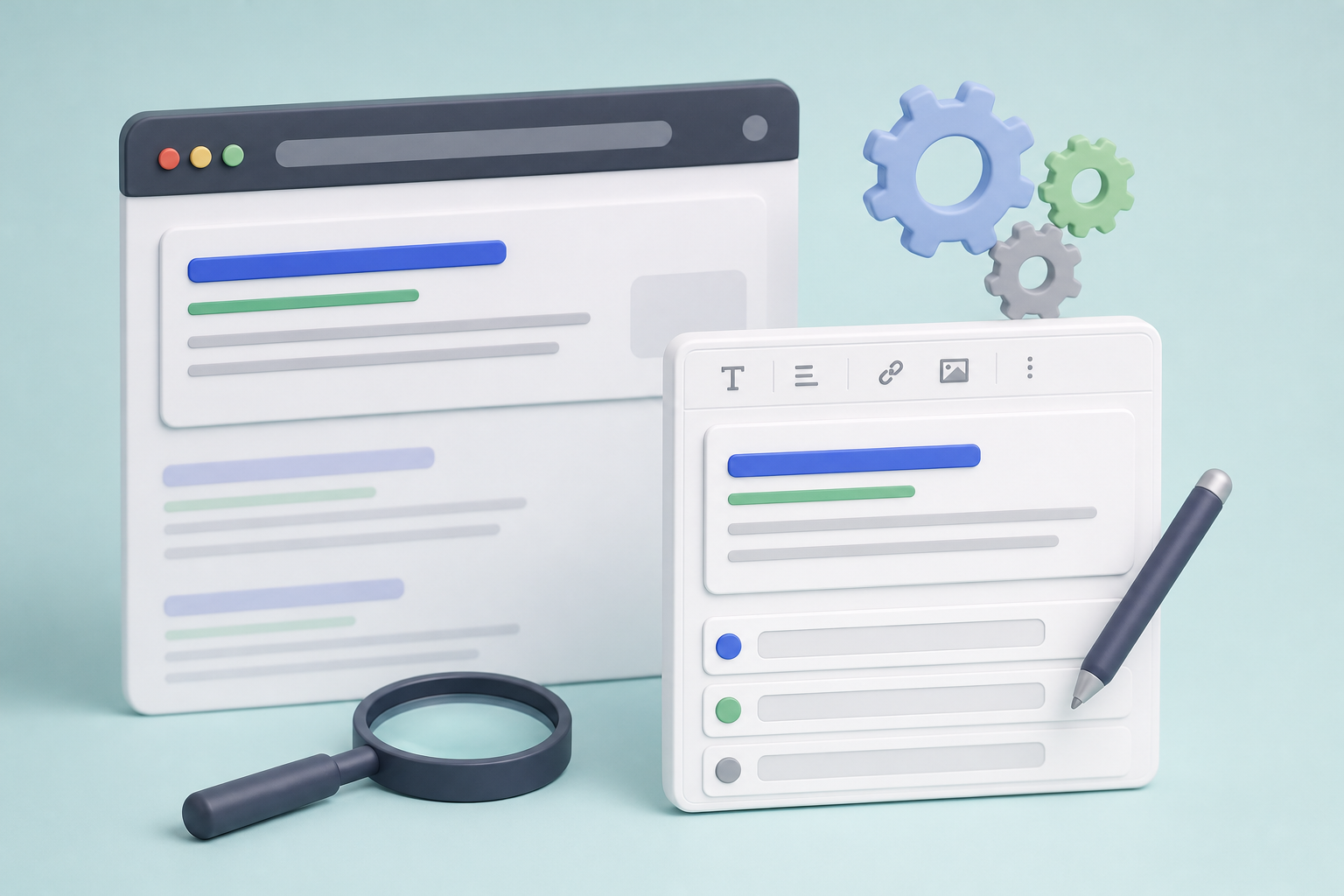
Together these three elements make up the snippet, the part people see in the results before they click. Unlike Google Ads for small business, where you pay for every click, this space is free, so it’s worth getting right. With Yoast SEO, Rank Math or All in One SEO you can edit all three right below the editor, with a preview.
2. The title tag
The title tag is the blue headline that shows up on Google. It can match your post title, but it doesn’t have to. A few practical rules:
- put your main keyword near the start;
- stay roughly within 55-60 characters, because Google truncates based on pixel width and a long title ends in an ellipsis;
- add something that gives people a reason to click: a number, the year if the topic changes often, or the format (guide, checklist, examples).
Example: instead of “Some Helpful Tips for Looking After Succulents Indoors”, try “Indoor Succulents: 7 Mistakes That Kill Them”.
3. The slug
The slug is the last part of the URL. WordPress generates it from your title, so it often comes out long and full of filler words. Trim it: lowercase, words separated by hyphens, no special characters, only the words that matter. Go from /some-helpful-tips-for-looking-after-succulents-indoors/ to /indoor-succulents/.
One warning: change the slug before you publish. If you change it on a post that’s already indexed, you need to set up a 301 redirect from the old URL.
4. The meta description
It doesn’t directly affect rankings, but it can affect clicks. Write 140-160 characters that sum up what the reader will get and include the keyword. Be aware that Google sometimes rewrites it using a passage from your post, which is one more reason to have a clear opening paragraph.
5. Headings: a hierarchy you can follow at a glance
Your post title is already the H1, so in the body use H2s for main sections and H3s for subsections. Don’t pick a heading level because it “looks bigger”: the hierarchy exists to show the structure to both readers and Google.
A quick test: read only the subheadings, one after another. If they summarize the post, the structure works. If you find headings like “Introduction” or “Other Considerations”, rewrite them so they actually describe the section. Include the keyword or a variation in at least one H2, where it makes sense.
6. The first paragraph gets straight to the point
Your main keyword and the promise of the post belong in the first two or three lines. Skip generic openers like “In today’s fast-paced world, more and more people…”. Someone arriving from Google has a specific question and decides within seconds whether to stay.
For the rest of the post, use synonyms and related terms instead of repeating the same phrase. If you’re writing about “bathroom remodel cost”, it’s natural to also talk about budgets, tiles, fixtures, contractors and timelines.
7. Lightweight images with alt text
Every image has three things to check:
- File size: compress it before uploading or use a plugin that converts it to WebP. A 4 MB photo straight from your phone slows the page down, especially on mobile.
- File name: succulents-windowsill.jpg says something, IMG_4521.jpg doesn’t.
- Alt text: describe what the image shows in one sentence. It helps people using screen readers and helps Google understand the image. Only include the keyword if it genuinely describes the picture.
Internal and external links: steps 8 and 9
8. Internal links
Link the post to at least two or three pages on your site that go deeper on something you mention. Use descriptive anchor text: “read our guide to keyword research” beats “click here”. Then work in reverse: open one or two older posts and add a link to the new one. It’s the simplest way to help Google find it sooner, and one of the most underrated small business blogging tips.
9. External links
If you cite a statistic, a regulation or a study, link to the original source. It doesn’t take authority away from your site; it makes your content more credible to readers. Check that the links work and don’t point to outdated pages.
10. Structured data: the bare minimum
Structured data (schema markup) tells Google what kind of content a page contains. For a blog, your SEO plugin usually adds Article or BlogPosting schema automatically: just confirm it’s enabled in the settings. If you run a WooCommerce store, WooCommerce SEO starts here: make sure product pages have Product schema with price and availability.
You can check the result with Google’s Rich Results Test. A word of caution: FAQ schema is still useful for describing your content, but for a few years now Google has shown FAQ rich results only for a limited set of sites, so don’t count on it to take up more space in the results.
11. Mobile readability
Google primarily looks at the mobile version of your pages, and for many sites most traffic comes from smartphones. Open the preview on your phone, not your laptop, and check:
- paragraphs no longer than 3-4 lines on a phone screen;
- tables that don’t spill off the edge (if they’re too wide, turn them into lists);
- buttons and links spaced far enough apart to tap without mistakes;
- no popup covering the text as soon as the page loads.
12. After you hit Publish: Search Console
The last step comes right after publishing. If you’re looking for Google Search Console for beginners, start with this: open Search Console, paste the URL into the URL Inspection bar and, if the page isn’t indexed yet, click Request Indexing. It doesn’t guarantee a timeline, but it often speeds up discovery.
Put a reminder in your calendar for 4-6 weeks later: in the Performance report, filter by page and see which queries the post shows up for. You’ll often find questions you hadn’t thought of that are worth adding to the post. Over time, that loop is one of the most reliable answers to how to increase organic traffic without writing more and more new content.
The checklist at a glance
| Step | What to check |
|---|---|
| 1 | The content matches search intent |
| 2 | Title tag with keyword near the start, around 55-60 characters |
| 3 | Short slug, no stop words |
| 4 | Meta description of 140-160 characters |
| 5 | Descriptive H2/H3 hierarchy |
| 6 | Keyword in the first paragraph |
| 7 | Compressed images, file name and alt text |
| 8 | 2-3 internal links, inbound and outbound |
| 9 | External sources linked and working |
| 10 | Structured data enabled and tested |
| 11 | Preview on a smartphone |
| 12 | URL Inspection in Search Console |
How to run a WordPress SEO checklist without losing half an hour every time
Done by hand, this checklist takes a few minutes per post. The problem isn’t any single check, it’s consistency. When you’re publishing two or three posts a month between client work, details slip: the slug stays a mile long, the meta description stays empty, the image alt text gets forgotten. That’s where content marketing for small business usually breaks down, not in the ideas but in the routine. A simple blog content calendar template helps with the “when”; the checklist handles the “how”.
AutoPub was built for exactly this. It works as an AI content writer for WordPress: it generates posts in English and Italian with the title, slug, meta description, headings, FAQs and image alt text already set up according to these rules, then auto posts to WordPress for you. If you’ve been comparing the best AI writing tools for SEO, this is the part most of them leave to you. You keep the part that really matters: reviewing, adding your own experience and deciding what goes live. Want to see how it works on your site? Start with the free trial.
Frequently asked questions
How long does it take to optimize a blog post before publishing?
With an SEO plugin already set up and a bit of practice, 10-15 minutes is usually enough. It takes longer the first few times, but if you use the same checklist every time the checks become quick.
Does the title tag have to match the post title?
No. The H1 is what people see once they’re on the page; the title tag is what appears on Google. You can keep them the same for simplicity, or make the title tag shorter and more click-focused.
How many times should I repeat the keyword in my post?
There’s no magic number. Put it in the title tag, the slug, the first paragraph and at least one subheading, then write naturally using synonyms and related terms.
Do I need an SEO plugin for WordPress SEO?
It isn’t required, but it makes the job much easier. Plugins like Yoast SEO, Rank Math or All in One SEO let you edit title tags and meta descriptions, manage your sitemap and add basic structured data.
Can I optimize a post that’s already published?
Yes, and it’s often a good idea. You can update the text, title tag and meta description freely; if you change the slug, set up a 301 redirect from the old URL so you don’t lose visits or rankings.
Can an AI blog writer handle this checklist for me?
An AI blog post generator can take care of the repetitive parts, such as title tags, slugs, meta descriptions and alt text. You should still check search intent, add your own experience and review the post before it goes live.