Page Not Indexed in Search Console: Causes and Fixes
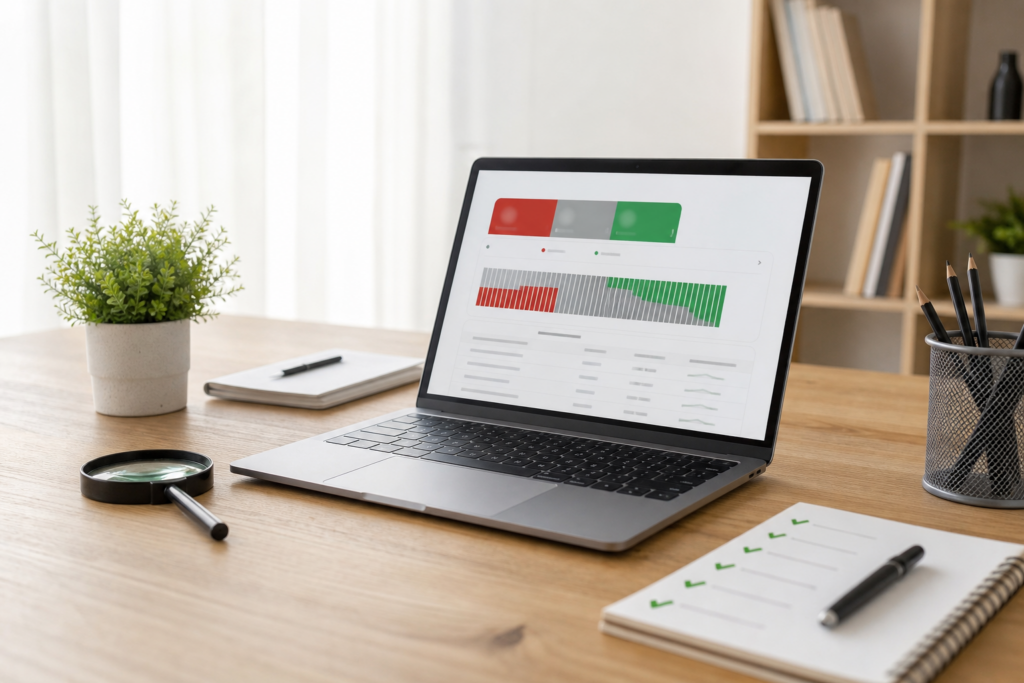
You open Google Search Console, go to Indexing > Pages, and see a grey bar towering over the green one. Your first instinct is to panic. But a page not indexed in Search Console isn’t always a problem. Sometimes it’s exactly what you want. Other times it’s the reason a post you spent hours on hasn’t brought in a single visitor.
This guide walks through the most common statuses in the report, what they actually mean, and what to check in WordPress for each one. Think of it as Google Search Console for beginners: you don’t need deep technical skills, just access to your WordPress dashboard and about ten minutes.
Rule one: not every page needs to be indexed
A WordPress site generates plenty of URLs that are worthless on Google: tag pages with a single post, author archives on a one-author blog, image attachment pages, URLs with parameters, and the cart and checkout pages in WooCommerce. If those URLs show up as not indexed, that’s fine.
So the right question isn’t “how many pages aren’t indexed?” but “are any important pages among the ones that aren’t indexed?”. Blog posts, service pages, product pages and main categories belong in the index. Everything else can stay out.
How to read the Page indexing report

Below the chart you’ll find the table Why pages aren’t indexed. Each row is a reason, with the number of affected URLs. Click a row to see the list of URLs and filter them.
A practical way to avoid getting lost:
- Use the filter at the top and switch to All submitted pages. This shows only the URLs you listed in your sitemap, the ones you’ve told Google matter.
- Open each reason and scroll through the examples: if you only see tags, attachments or technical URLs, move on.
- If you find posts or products, copy the URL and paste it into the URL Inspection tool (the search bar at the top) to see the details and test the live version.
Keep in mind the report isn’t real-time: the data can lag a few days behind what you see on your site.
Page not indexed in Search Console: common statuses and fixes
Excluded by “noindex” tag
The page contains an instruction telling Google not to index it. If this affects pages you want to rank, it’s the first thing to fix.
- In Settings > Reading, make sure Discourage search engines from indexing this site is unchecked. This often gets left on after moving a site from staging to live.
- In your SEO plugin (Yoast, Rank Math, AIOSEO or similar), check the settings for each content type: posts and pages must be indexable.
- Open the individual post and check the SEO plugin box in the editor: sometimes noindex is set only there.
Crawled – currently not indexed
Google visited the page and decided not to add it to the index, at least for now. This is usually not a technical issue but one of perceived value: the content is too thin, too similar to other pages on your site, or poorly linked.
- Compare your page with the top results for the same search: does it answer the question better, or just add more words?
- Merge posts that cover the same topic and redirect the weaker one to the stronger one.
- Add internal links from pages that are already indexed and get traffic, using descriptive anchor text.
Discovered – currently not indexed
Google knows the URL exists but hasn’t crawled it yet. On a small, new site this is normal for the first few weeks. If it drags on, the usual culprits are a slow server or too many low-value URLs eating up crawl resources.
- Check server response times under Settings > Crawl stats.
- Cut down on useless URLs: noindex rarely used tags and disable attachment pages.
- Make sure the page is in your sitemap and reachable from the menu or from other posts.
Alternate page with proper canonical tag
The page declares that another URL is the main version. This status is almost always correct: think WooCommerce variants with parameters or AMP versions. Only step in if the listed URL is the one you actually want to rank; in that case, check the Canonical URL field in your SEO plugin.
Duplicate, Google chose different canonical than user
You set a canonical page, but Google prefers a different one. This happens when two pieces of content are nearly identical, for example two product pages that differ only by colour, a classic WooCommerce SEO headache. URL Inspection shows which version Google picked. From there, either make the content genuinely different or merge the pages.
Page with redirect and Not found (404)
The first status is normal if you changed a slug or moved content. It becomes a problem when the redirected URL is still in your sitemap or internal links: update them to point at the final destination. For 404s, ask whether the page had traffic or external backlinks. If it did, set up a 301 redirect to the closest matching content; if not, you can leave it as is.
Soft 404
The page loads fine but looks empty to Google: categories with no products, internal search results, out-of-stock products with barely any text. Add useful content, or return a proper 404 or a redirect.
Blocked by robots.txt
Open yoursite.com/robots.txt and look for Disallow rules that are too broad. Watch out: robots.txt blocks crawling, not indexing. If you want to remove a page from Google, use noindex and let Google crawl the page so it can actually read that tag.
Quick WordPress SEO checklist
When an important page won’t get into the index, run through these points in order:
- Discourage search engines option turned off.
- No noindex in your SEO plugin, either site-wide or on the individual post.
- Page included in the sitemap submitted to Search Console.
- Canonical pointing to the page itself.
- At least two or three internal links from pages that are already indexed.
- Original, thorough content that’s clearly different from your other posts.
- No security or caching plugin blocking Googlebot or returning 5xx errors.
How to ask Google to check again
Once you’ve fixed the issue, you have two options. For a single important URL, use URL Inspection > Test live URL and, if the test passes, click Request indexing. There’s a daily limit on requests, so save it for pages that really matter.
For an issue affecting many pages, open the reason in the report and click Validate fix. Google will recheck the URLs over the following weeks and email you the outcome. Requesting indexing doesn’t guarantee inclusion: if the problem was quality, only better content will change the result.
Prevention beats cure
Many statuses in the report come from editorial habits: rushed posts, repeated topics, irregular publishing with no internal links. A blog content calendar with a distinct keyword for each post cuts down on duplicates and thin content before Google ever flags them, and it’s one of the most reliable ways to increase organic traffic over time.
If time is your bottleneck, AutoPub helps right here. It works as an AI blog writer that can auto post to WordPress: structured articles, each targeting a different keyword, with title, excerpt and slug already optimised. You keep the final review and a monthly look at the Indexing report. You can try it for free and see how it changes your publishing schedule.
Frequently asked questions
How long does Google take to index a new page?
There’s no fixed timeframe: it can range from a few hours to several weeks. New or rarely updated sites usually take longer. An up-to-date sitemap and internal links from already indexed pages help Google discover new content faster.
Is it bad to have lots of pages not indexed?
Not necessarily. On WordPress it’s normal for tags, archives, attachments and parameter URLs to stay out of the index. It only becomes a problem if the excluded pages include posts, service pages or products you want to rank.
Does requesting indexing multiple times help?
No. Repeating the request for the same URL doesn’t speed things up. Submit one request after fixing the problem, then wait. If the page still stays out, the reason is almost always content quality or duplication.
What’s the difference between Discovered and Crawled – currently not indexed?
Discovered means Google knows the URL but hasn’t visited it yet. Crawled means it visited the page and chose not to index it for now. The first is about how your site gets crawled; the second is about the value of the content.
Can my SEO plugin block indexing without me noticing?
Yes. A noindex setting on an entire content type or on a single post removes that page from Google. Check both the plugin’s global settings and the SEO box inside the page editor.